User guide
Everything the File app can do. The screenshots use invented documents and people.
- Getting started
- Folders
- Reading a document
- Details
- Editing
- Adding documents
- Search
- Notes
- Reminders
- Inbox
- Account
- Look
- Trash
- Widgets and the Scan button
- Who can do what
- In the browser
Getting started
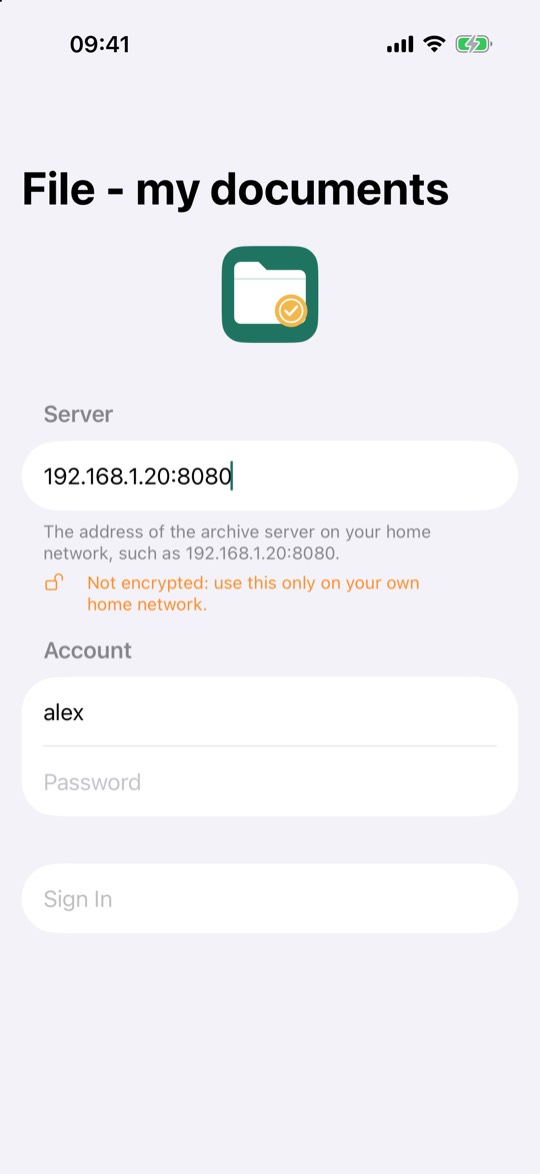
Enter your server's address, your username and your password. Your administrator gives you these. If the address is on your home network, the app warns that the connection isn't encrypted, so use it only there.
After signing in, the app offers to set up an authenticator: a code from an authenticator app, on top of your password. You can do this later under Account.
From then on, Face ID opens the app. It locks itself after 5 minutes in the background, and a cover hides your documents in the app switcher.
Folders
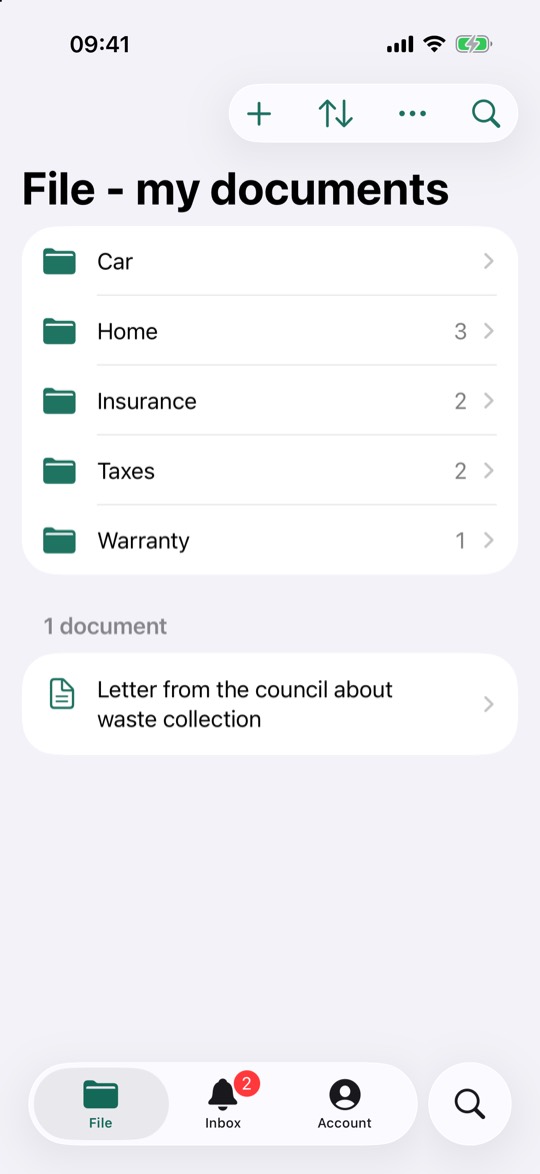
The File tab shows the folders, with the number of documents in each, and any documents in the folder itself. Tap a folder to open it. A coloured badge counts new documents that others added and you haven't opened.
The buttons at the top are:
- + adds a document to this folder.
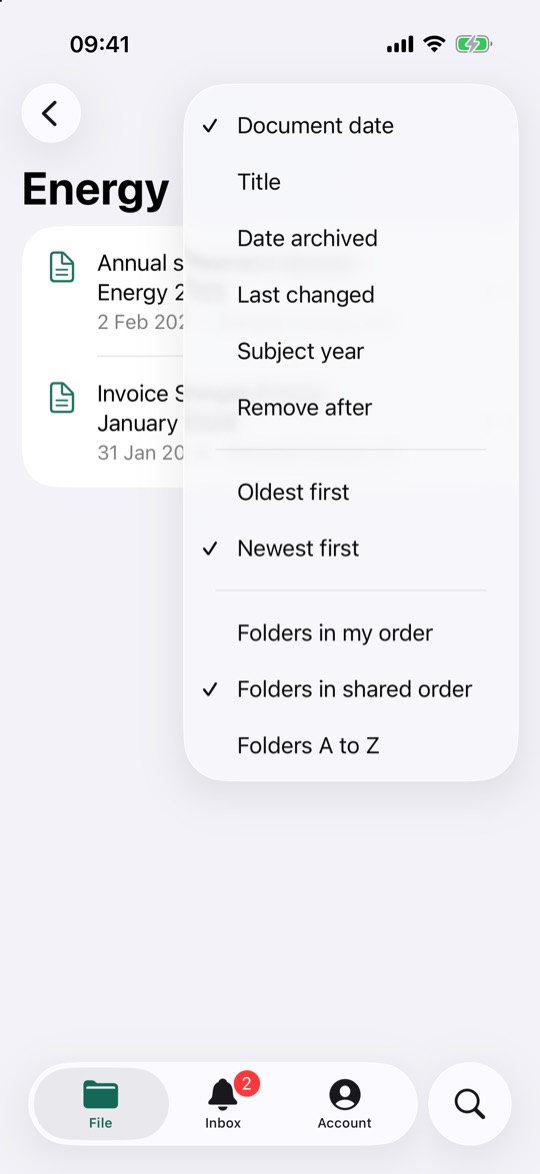
- Arrows set the order: by document date, title, date archived, last changed, subject year or remove-after date. Below those are the folder order and Show Closed.
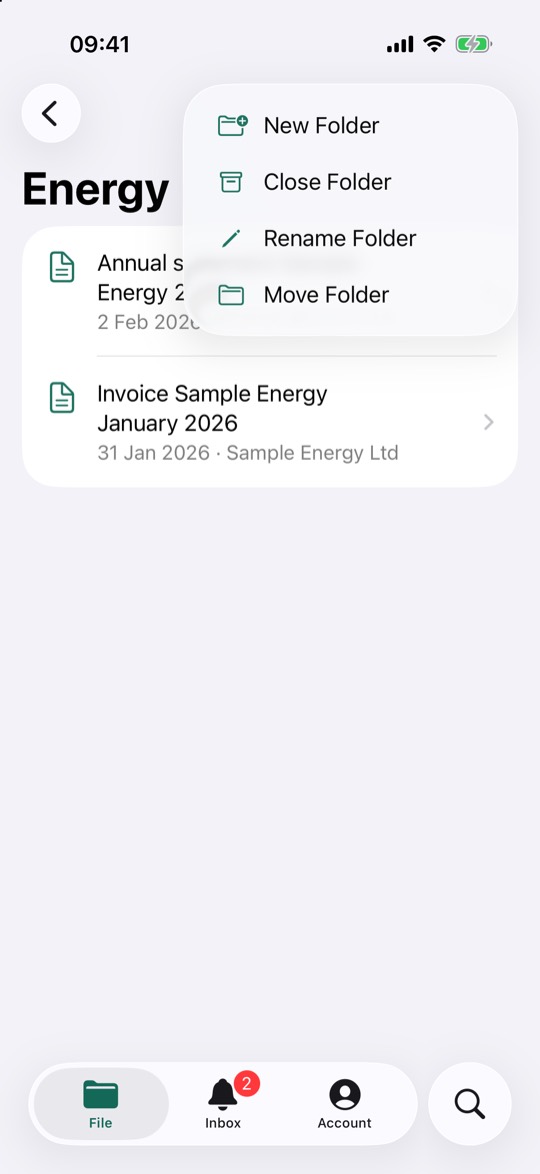
- Three dots holds the folder actions: New Folder, Mark All as Seen, Edit My Order, Close, Rename and Move Folder. An empty folder can also be deleted.
- Magnifying glass searches in this folder only.
Pull down to refresh. Closing a folder or document keeps it in the archive but hides it from people who haven't turned on Show Closed. That's useful for things that no longer apply.
Reading a document
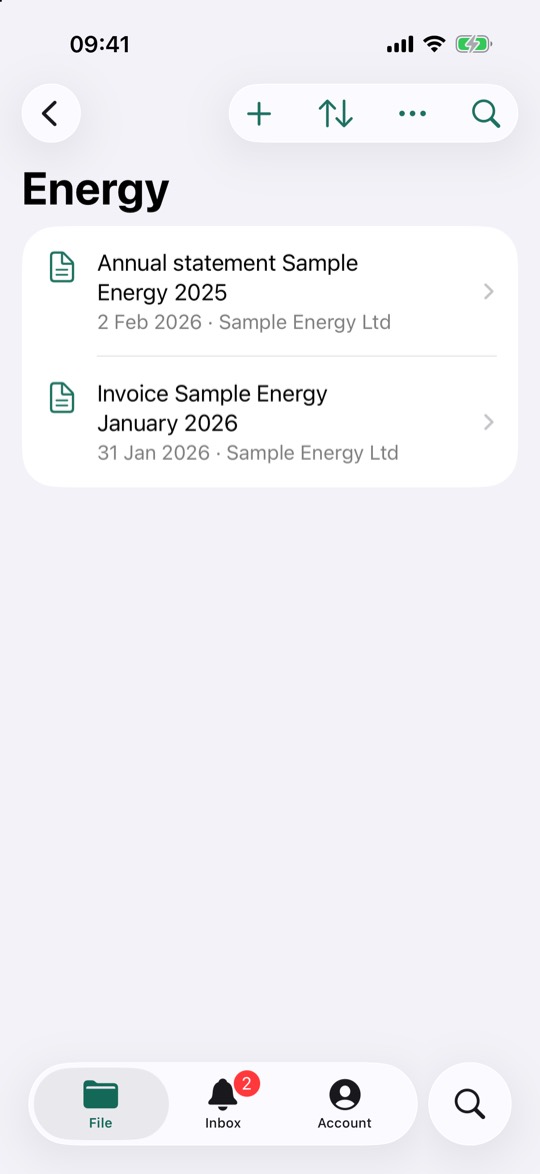
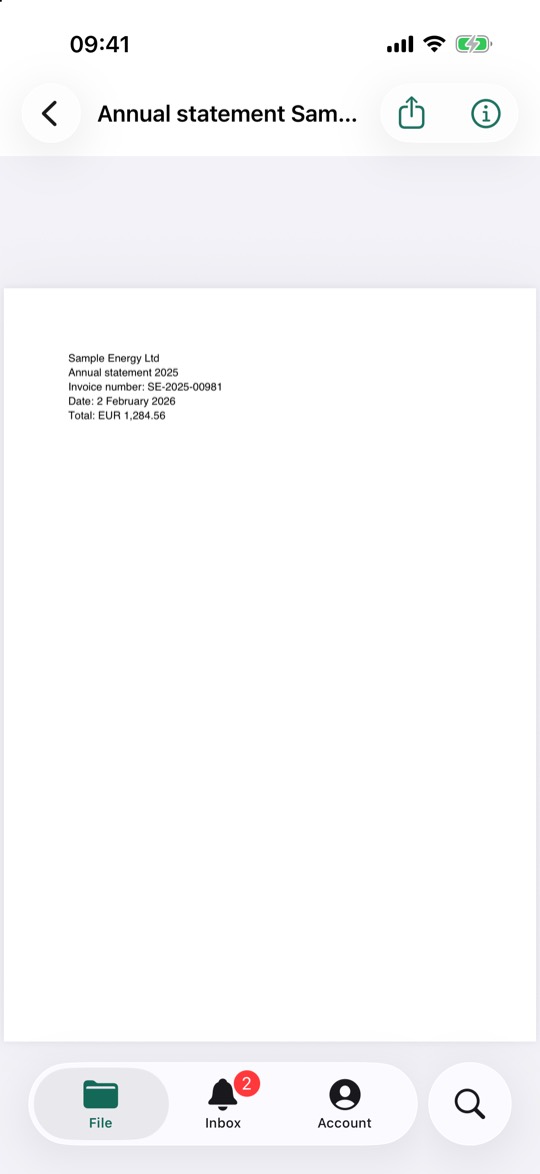
Tap a document to open the PDF. Pinch to zoom and swipe through the pages. Opened from a search, it starts at the best-matching page with your words highlighted. The share button sends the PDF to another app, and the info button opens the details. Opened PDFs stay on your iPhone, so they also open without a network.
Details
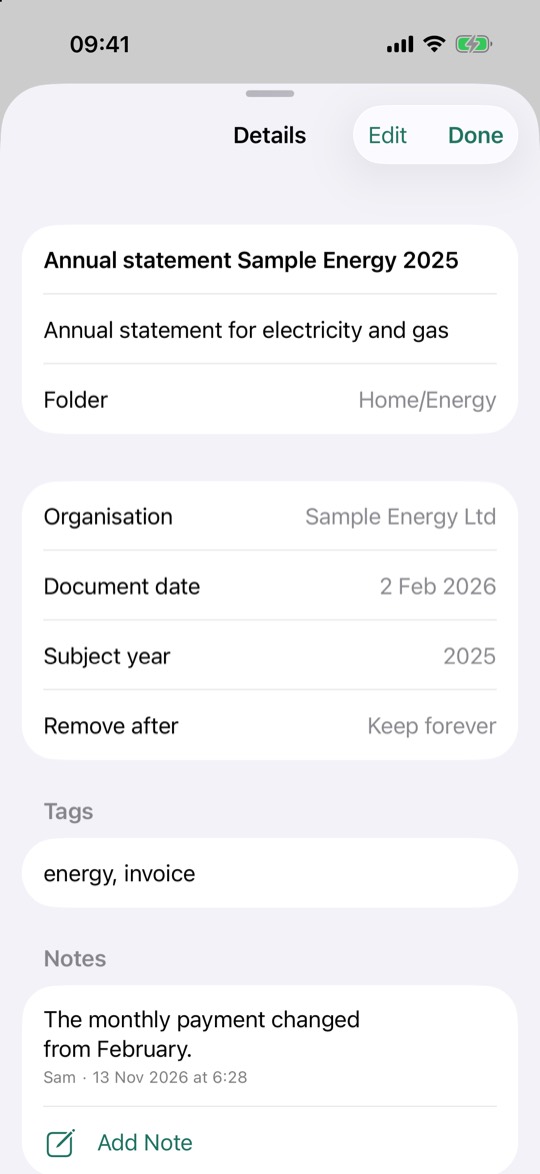
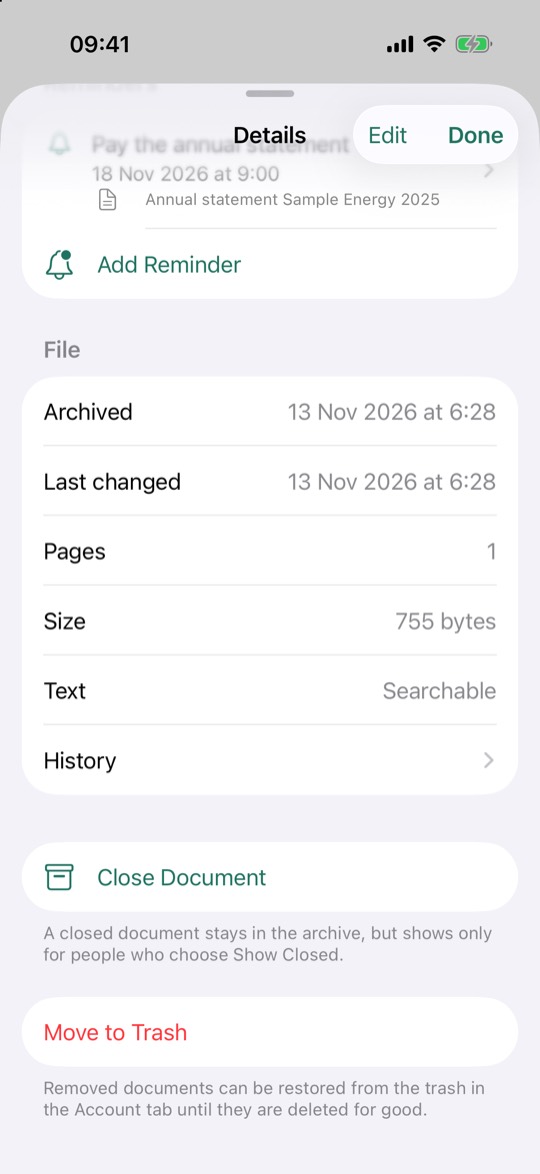
The details show what the archive knows about a document: description, folder, organisation, document date, subject year, remove-after date, tags, notes and reminders. Further down you find the file details, the history of all changes, Close Document and Move to Trash.
Editing
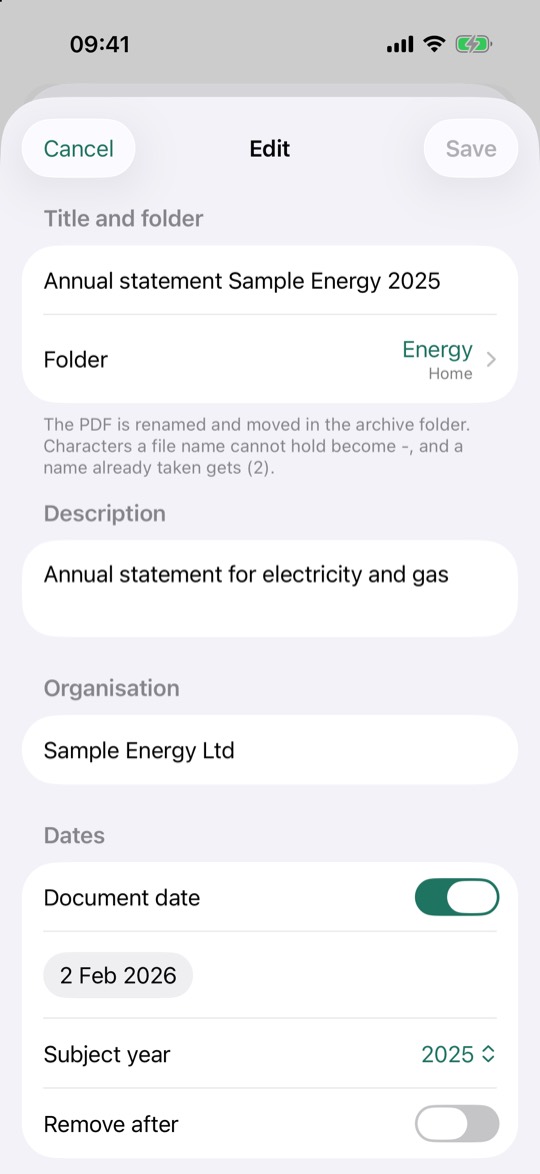
Tap Edit in the details to change the description, organisation, tags and dates. The organisation and tags suggest what's already in use. Admins can also change the title and folder; the PDF itself is then renamed and moved.
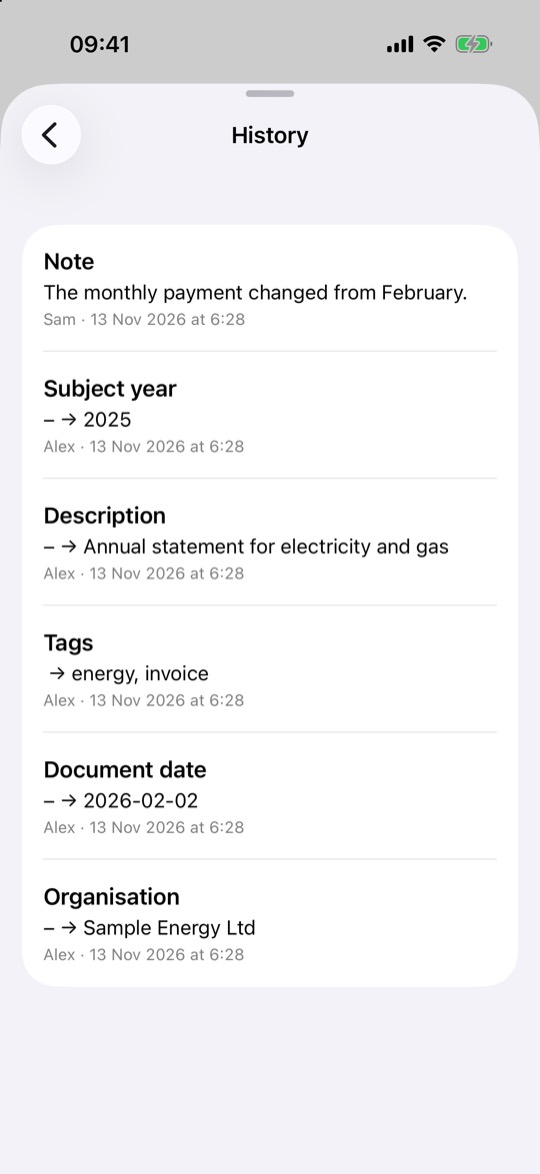
Remove After is a reminder to yourself of when a document may go. History shows who changed what, and when.
Adding documents
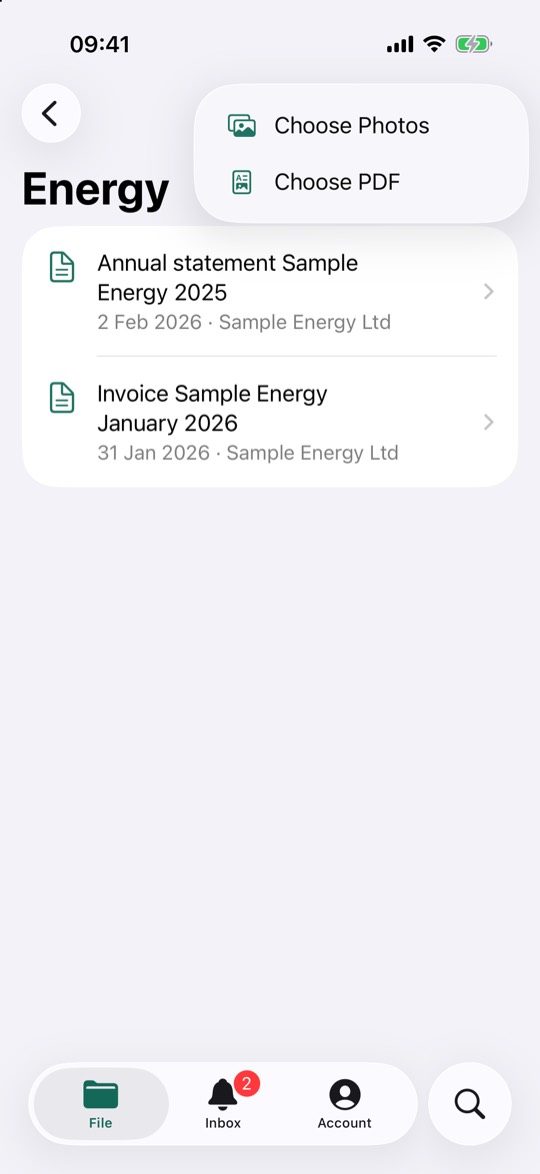
Tap + in the folder where the document belongs. You have three ways to add one:
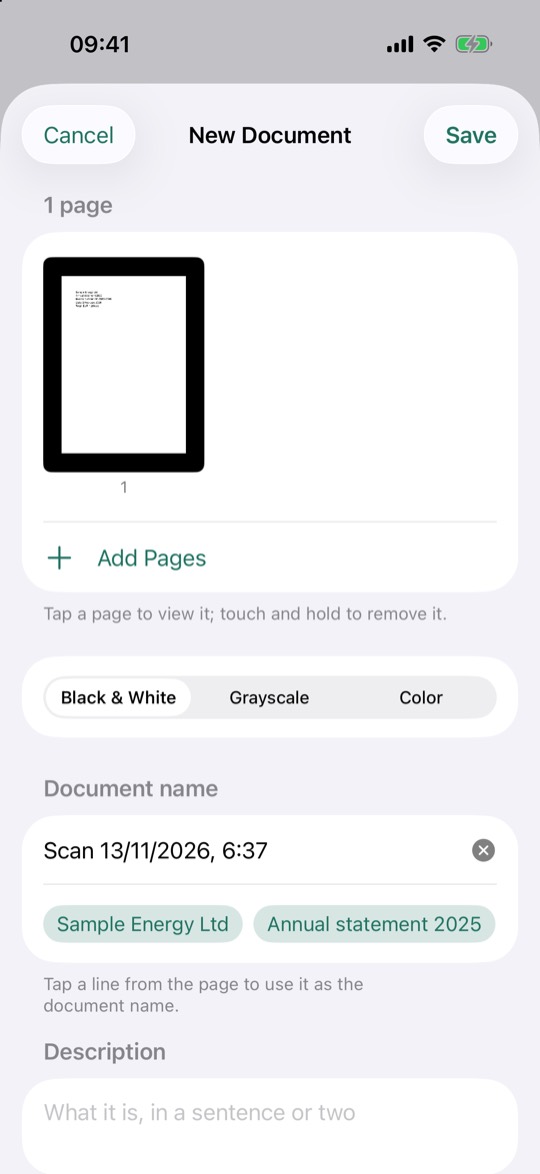
- Scan Document opens the document camera. It finds the page edges, takes the picture and straightens it. You can add more pages to the same scan.
- Choose Photos uses pictures you already have, up to 30 at a time.
- Choose PDF takes a PDF from Files.
Next, choose Black & White, Grayscale or Color. The app reads the text on the iPhone and turns it into a searchable PDF. It suggests a document name from lines on the page, and a date when it finds one; check that date. Add a description, organisation and tags if you like, then tap Save.
The scan stays on your iPhone until the server has filed it, so you can also scan without a connection. Uploads continue when the connection is back.
You can also share from other apps: choose File in the share sheet. This takes PDFs, images, Word, Pages, RTF, text and HTML files, and web pages from Safari. They wait at the top of the Inbox until you import them.
Search
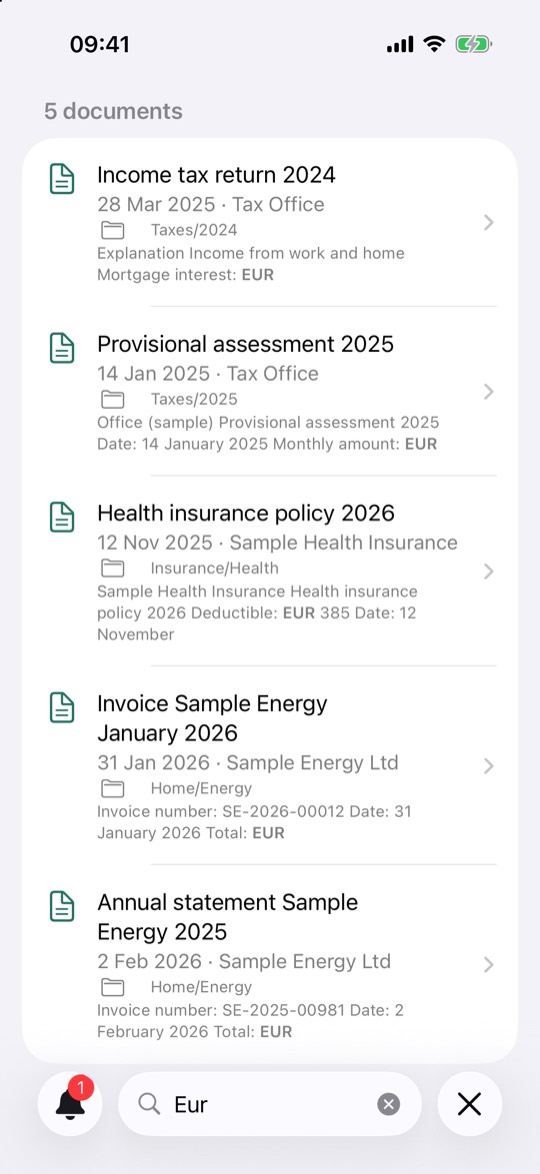
Tap the magnifying glass at the bottom. Every word you type must match, in the title, details, folder names or the text of any page. Results show where the word was found.
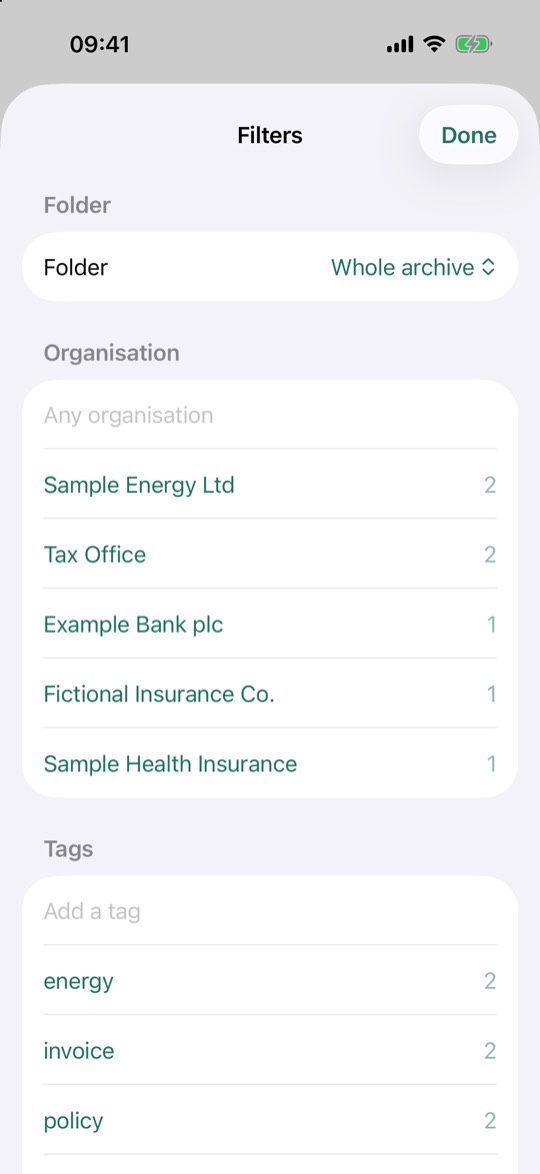
Use the filter button to narrow the search to a folder, organisation, tag, subject year or dates, and the arrows to change the order.
Notes
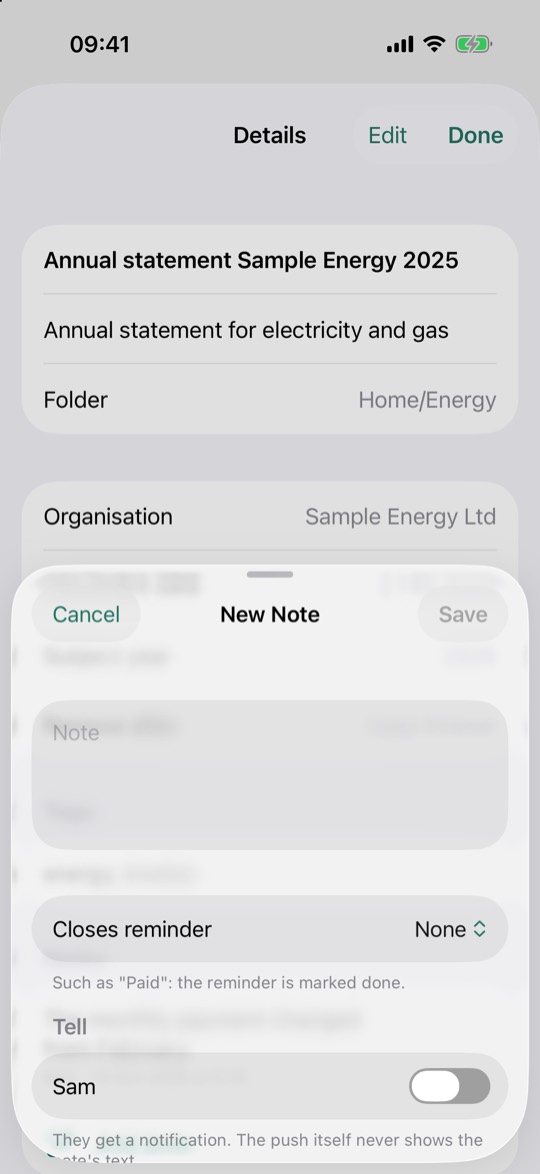
Use Add Note in the details to write a note on a document. Choose under Tell who should get a notification. A note can also close a reminder, such as "Paid".
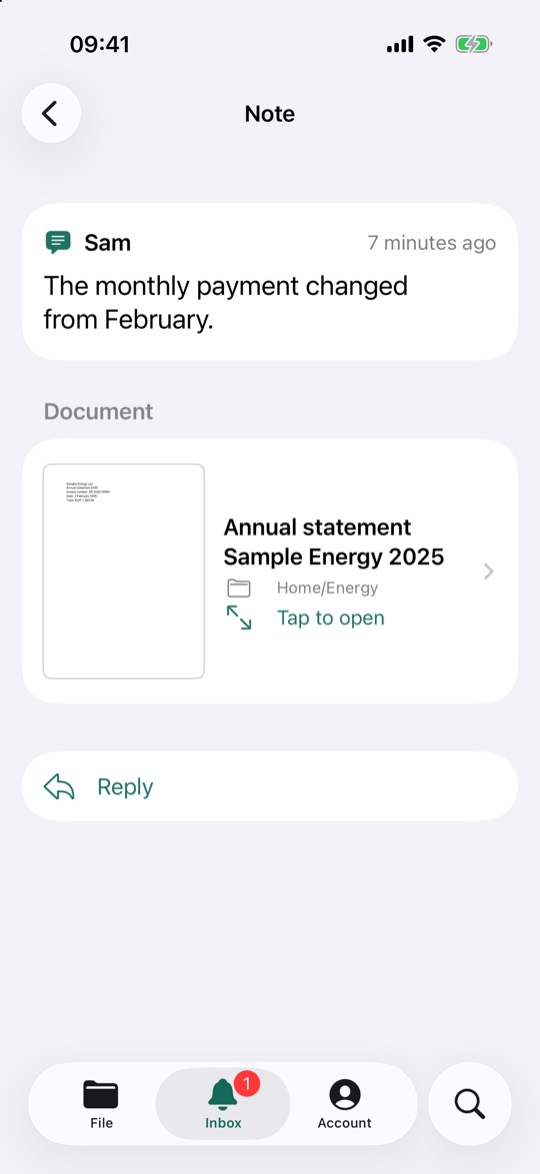
A note someone wrote to you opens on its own screen, with the document below it and a Reply button. A reply goes to the writer, as a new note on the same document.
Reminders
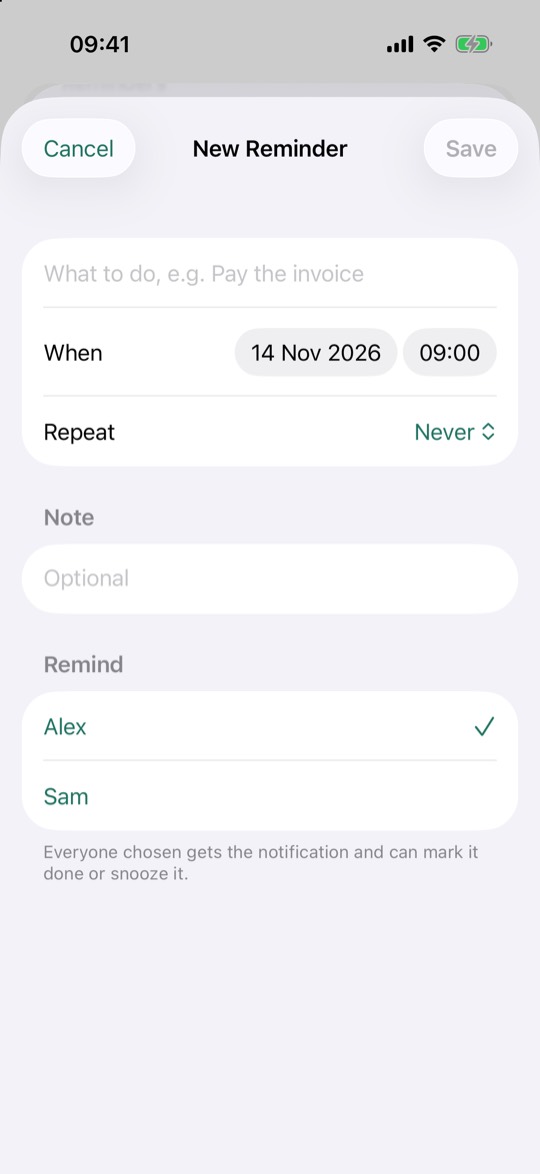
Use Add Reminder in the details. Enter what needs doing, the date and time, whether it repeats (daily, weekly, monthly or yearly), and who to remind.
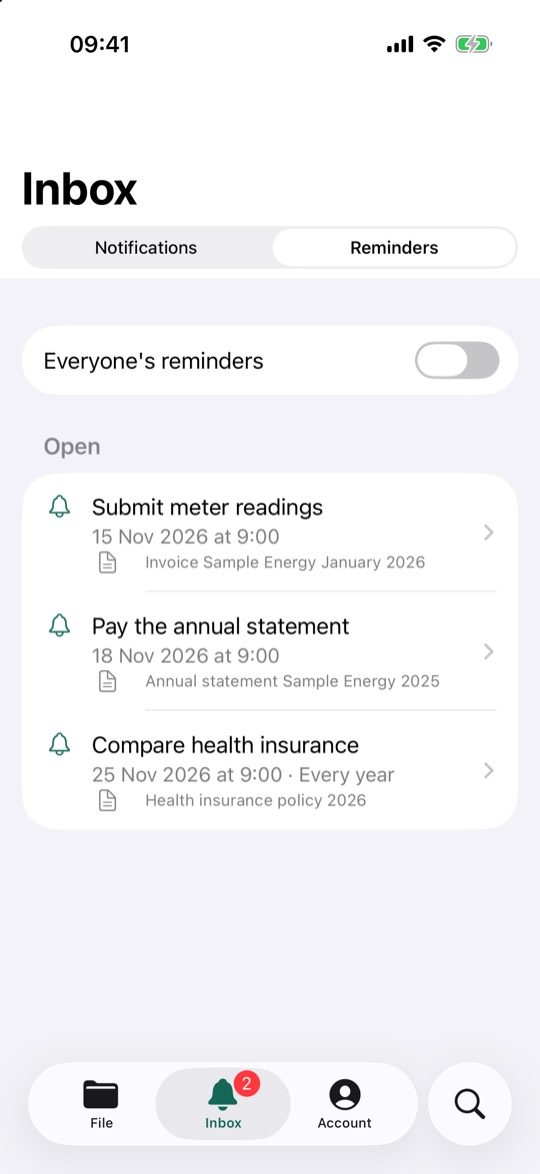
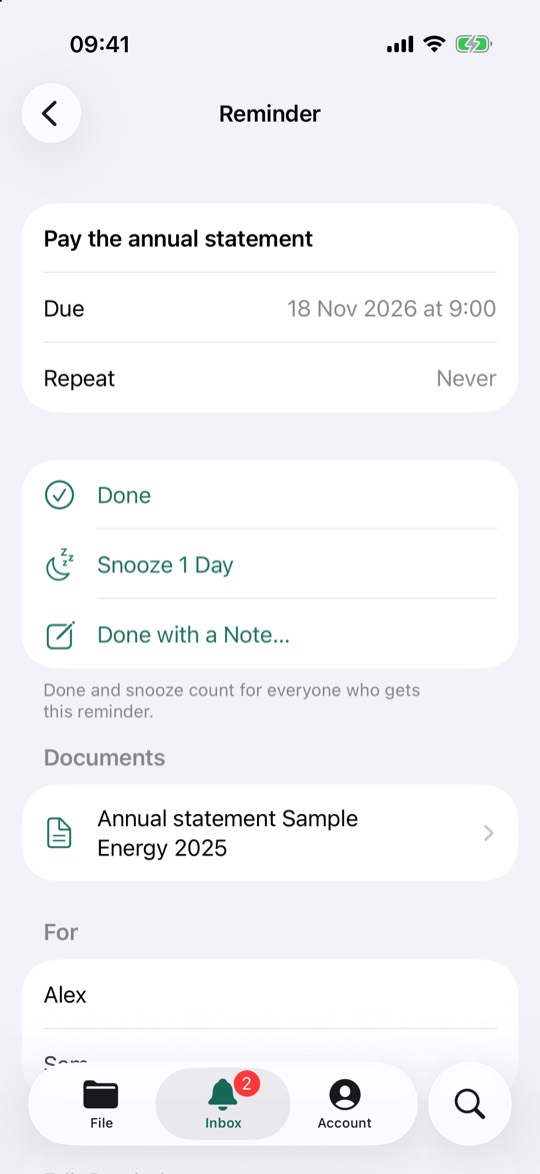
Everyone chosen gets the reminder and can mark it Done or snooze it for a day, and that counts for everyone. Done with a Note also writes a note on the document. The Reminders part of the Inbox lists your open reminders; turn on Everyone's Reminders to see the others too.
Inbox
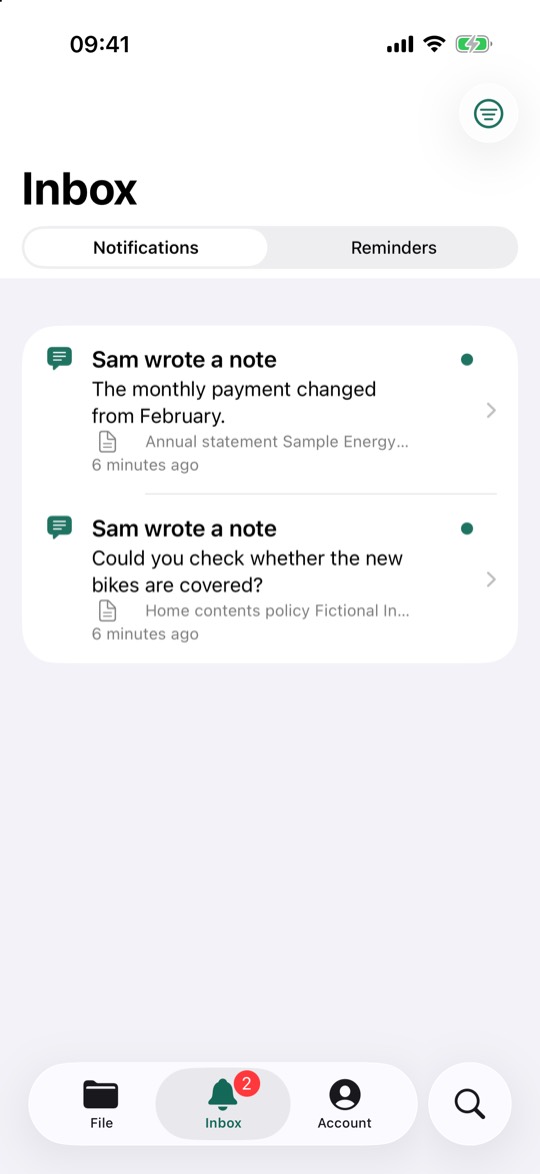
The Inbox collects notes for you, reminders that are due, and, if you turn that on, new documents from others. The red badge counts what you haven't read. The filter button at the top shows only what's unread.
If your server sends push notifications, they say only that there's a reminder or a note, and never show titles or note text. Without push, the app sets its own reminders on your iPhone.
Account
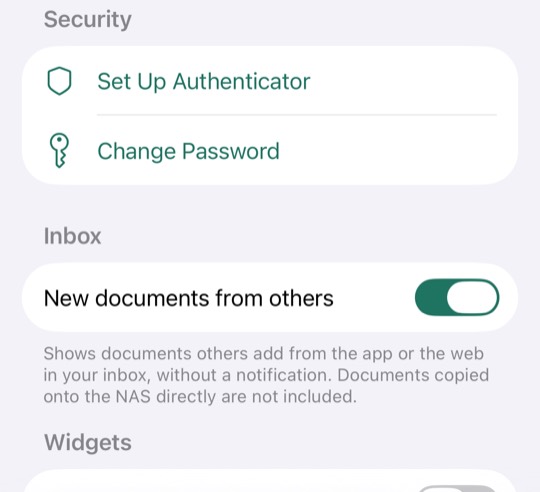
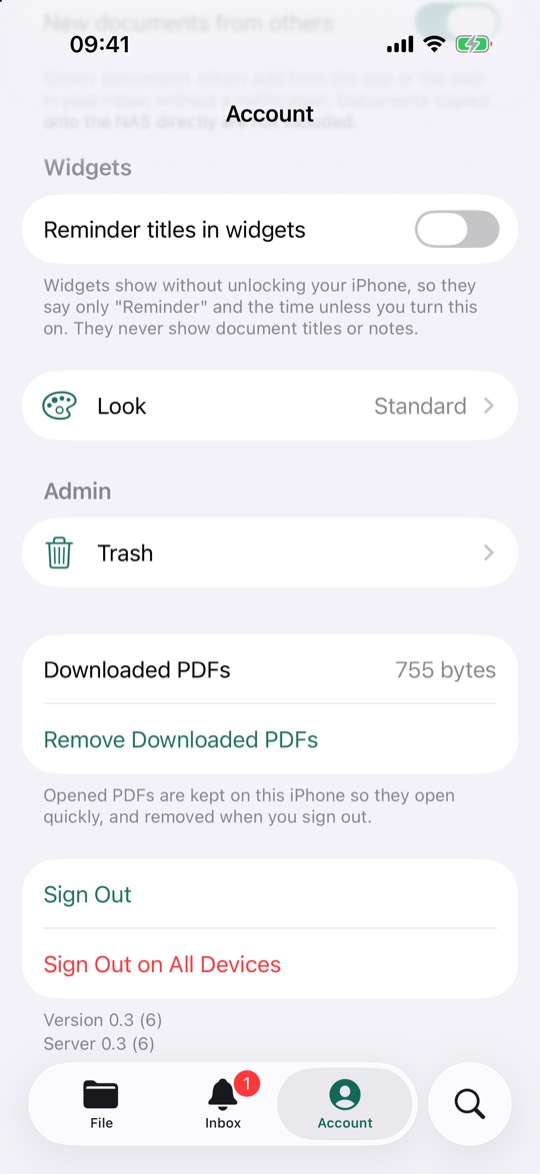
Here you set up an authenticator and change your password, choose whether new documents from others appear in your Inbox, and choose whether widgets show reminder titles.
You can also see how much space downloaded PDFs take and remove them. Sign Out signs out this iPhone and removes its downloaded PDFs. Sign Out on All Devices signs you out everywhere, also in browsers.
Look
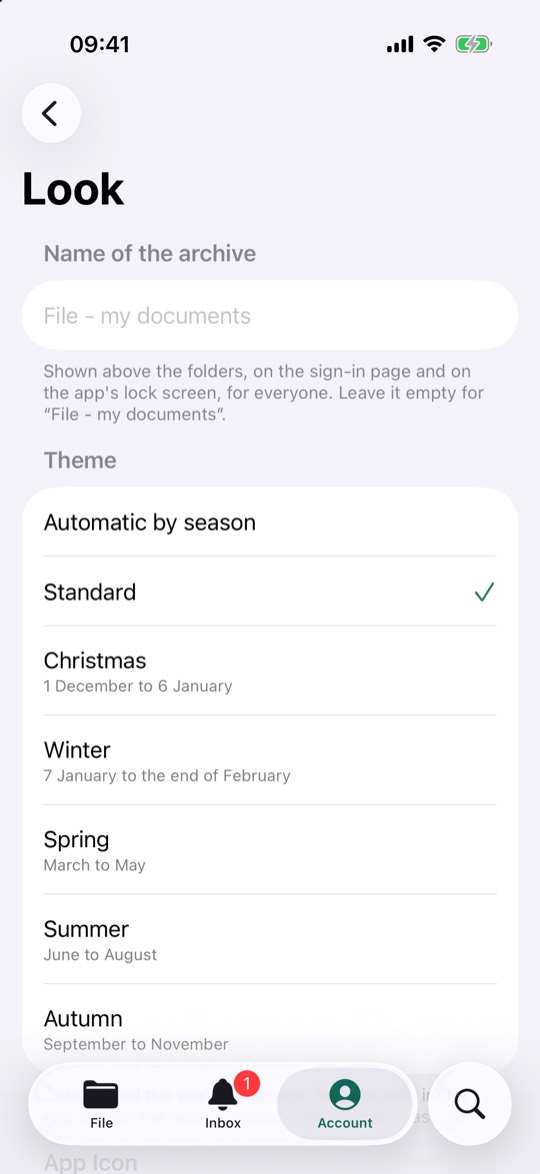
Admins can give the archive its own name and choose a theme for everyone. Without a name of its own, it’s called “File - my documents”. Automatic by Season changes the colours and the logo through the year.
Trash
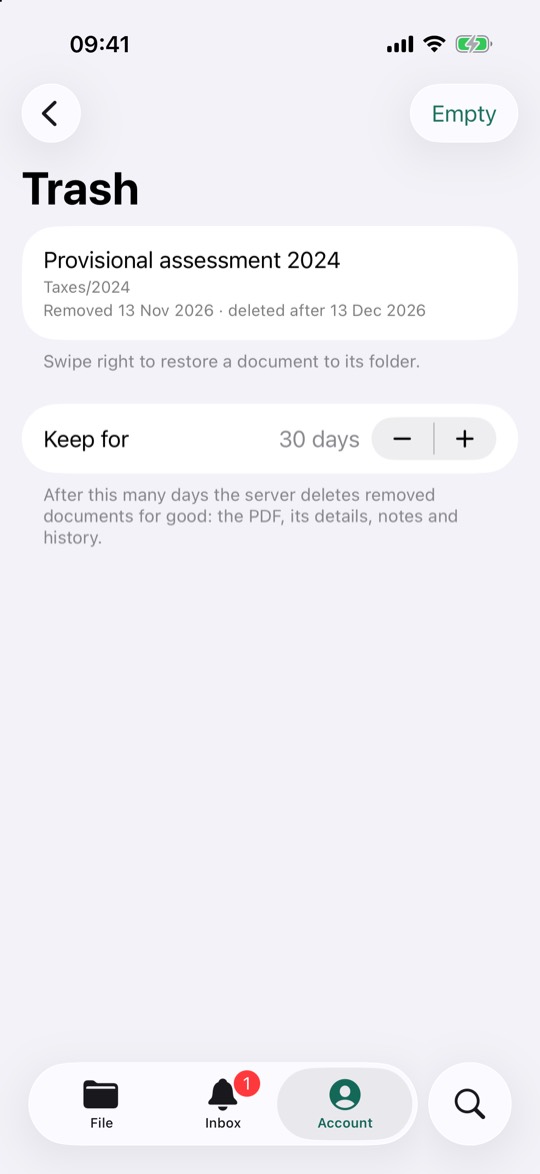
Move to Trash doesn't delete a document straight away. Admins find it in Account, under Trash. Swipe right on a document to put it back in its folder. After the number of days set under Keep For, the server deletes it for good, with its details, notes and history.
Widgets and the Scan button
Add the Reminders and Inbox widgets to your Home Screen or Lock Screen in the usual way. Widgets can be seen without unlocking, so Reminders shows only "Reminder" and the time unless you turn on titles under Account. They never show document titles or notes.
The Scan Document button can be added to Control Center or the Lock Screen, and takes you straight to the camera.
Who can do what
| Role | Can |
|---|---|
| Reader | Read and search documents, and share PDFs |
| Contributor | The above, plus add documents, edit details, write notes, and create reminders and folders |
| Admin | The above, plus rename and move documents and folders, close them, use the trash, change the look and manage users |
In the browser
Open your server's address in a browser and sign in with the same account. The website does everything the app does except the camera, and adds a few things that are easier on a big screen: drag and drop uploads, changing many documents at once, and managing users.